Vendor Guide: Payment Process for US Repair Orders

Repair Order Payment with Repair Payment Webpage
Please Note: A repair order Purchase Order (PO) is required prior to submitting for payment. You will receive a repair order PO when submitting transactions electronically. If not submitting repair orders electronically, contact a Wheels Maintenance Advisor by calling (800)477-2211 line. Once you have your repair order PO, follow the steps below.
Step 1: Visit https://repairpayments.wheels.com
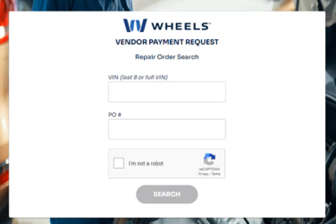
Step 2: Enter Last 8 of VIN and PO Number
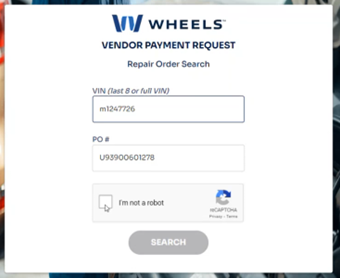
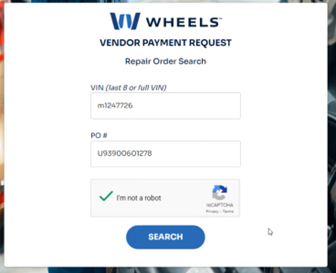
Step 3: Check CAPTCHA Box and Click Search
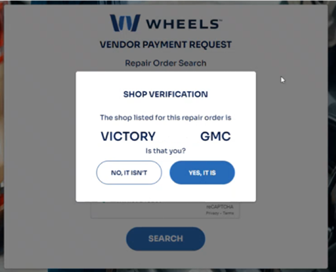
Step 4: Verify Shop Name
Step 5: Enter Invoice Total (Before Taxes), Sales Tax, and Click Confirm
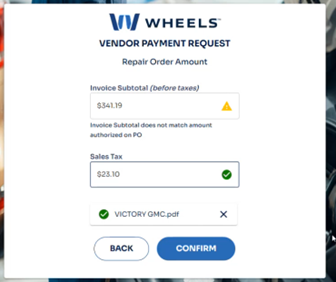
Step 6: Confirm All Information on Screen is Accurate and Select Payment Type
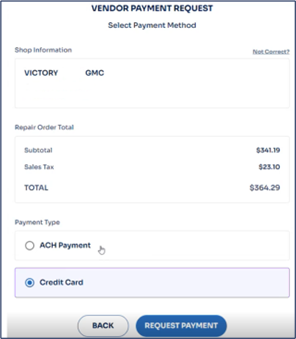
Step 7: Obtain Credit Card Information and Print/Save for Your Records
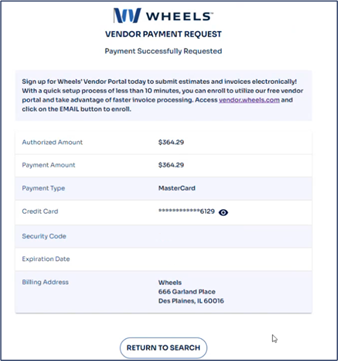
Obtaining a Credit Card for Repair Order Payment by Phone
Please Note: A repair order Purchase Order (PO) is required prior to submitting for payment. You will receive a repair order PO when submitting transactions electronically. If not submitting repair orders electronically, contact a Wheels Maintenance Advisor by calling (800)477-2211 line. Once you have your repair order PO, follow the steps below.
Step 1: Call (847) 957-3528
 “Welcome to the wheels automated payment system for repair services. this system will provide you with an immediate credit card number or forward your request to our AP department for direct payment per agreed terms. Please note any unauthorized charges will be charged back. . . . . . . . . . . .Please enter your 7 digit PO number”
Step 2: Enter 7-digit or 12-digit PO number
“You entered (Your PO number). If correct say yes or press 1 to reenter the purchase order say or press 2.”
Step 3: Confirm Your Information Is Correct
“We found a PO (your store name) If this information is correct say yes or press 1.”
Step 4: Enter the Total Invoice Amount Including Taxes
“Please enter the total invoice amount INCLUDING taxes”
“Please enter the sales tax.”
Step 5: Confirm the Total Invoice Amount Including Tax
“You entered (automated system will repeat the total amounts entered).”
“Please wait while we update our records. The total amount of your invoice after any applicable discount is (Total available on card)”
“If you need to hear the amount again press 9”
Step 6: Obtain Credit Card Information
- After noting the amount, press 1 and be ready to take down the card number.
- Automated system will recite the total amount available on the card, credit card number, expiry, and security code.
If you are having problems with a credit card please call 1(847)768-5586 for a live agent. Hours are 8am to 5pm Central Time.